Getting started
Connect Claude
Querywright connects to Claude as a custom connector. You sign in once in your browser and Claude holds an authorization you can revoke. There is no API key.
Before you start
- A Claude account that can add custom connectors. On Claude’s Team and Enterprise plans, an organization owner adds the connector first; members then connect it for themselves. Anthropic’s current instructions are in Get started with custom connectors using remote MCP.
- A Querywright account past the Plan and Site steps of setup. Connecting your AI is the third step, so setup will be asking for it. See getting started.
Steps
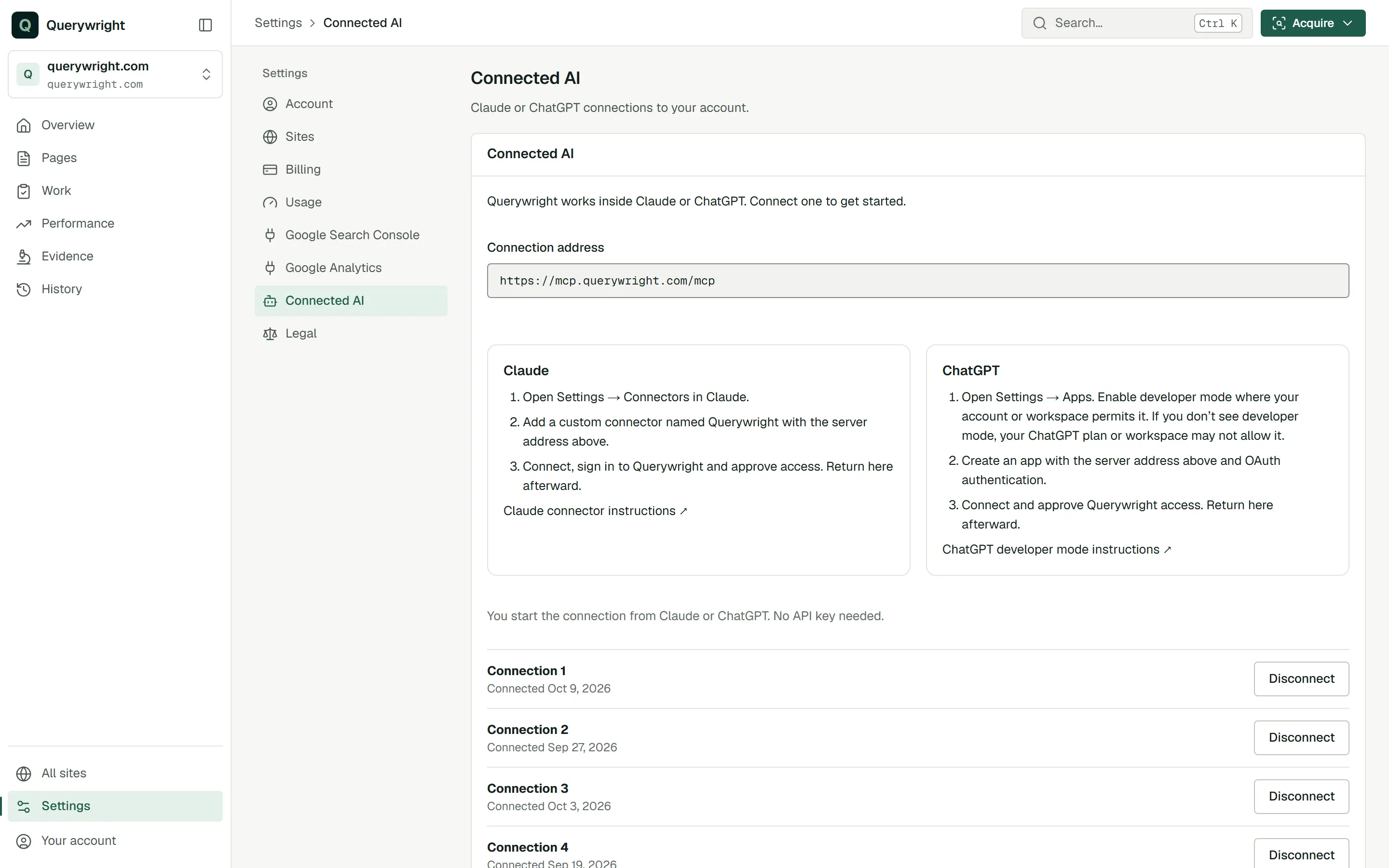
- Copy the connection address. In Querywright, stay on the Connect AI step of setup, or open Settings → Connected AI. Select and copy the Connection address:
https://mcp.querywright.com/mcp - Add a custom connector in Claude. In Claude, open Settings → Connectors and add a custom connector. Name it Querywright, paste the connection address, and add it. Leave any advanced OAuth fields empty; Querywright registers Claude itself.
- Connect. Press Connect on the Querywright connector. Claude opens a “Connect Querywright” page in your browser. Choose Continue with Querywright account, and sign in if the App asks you to.
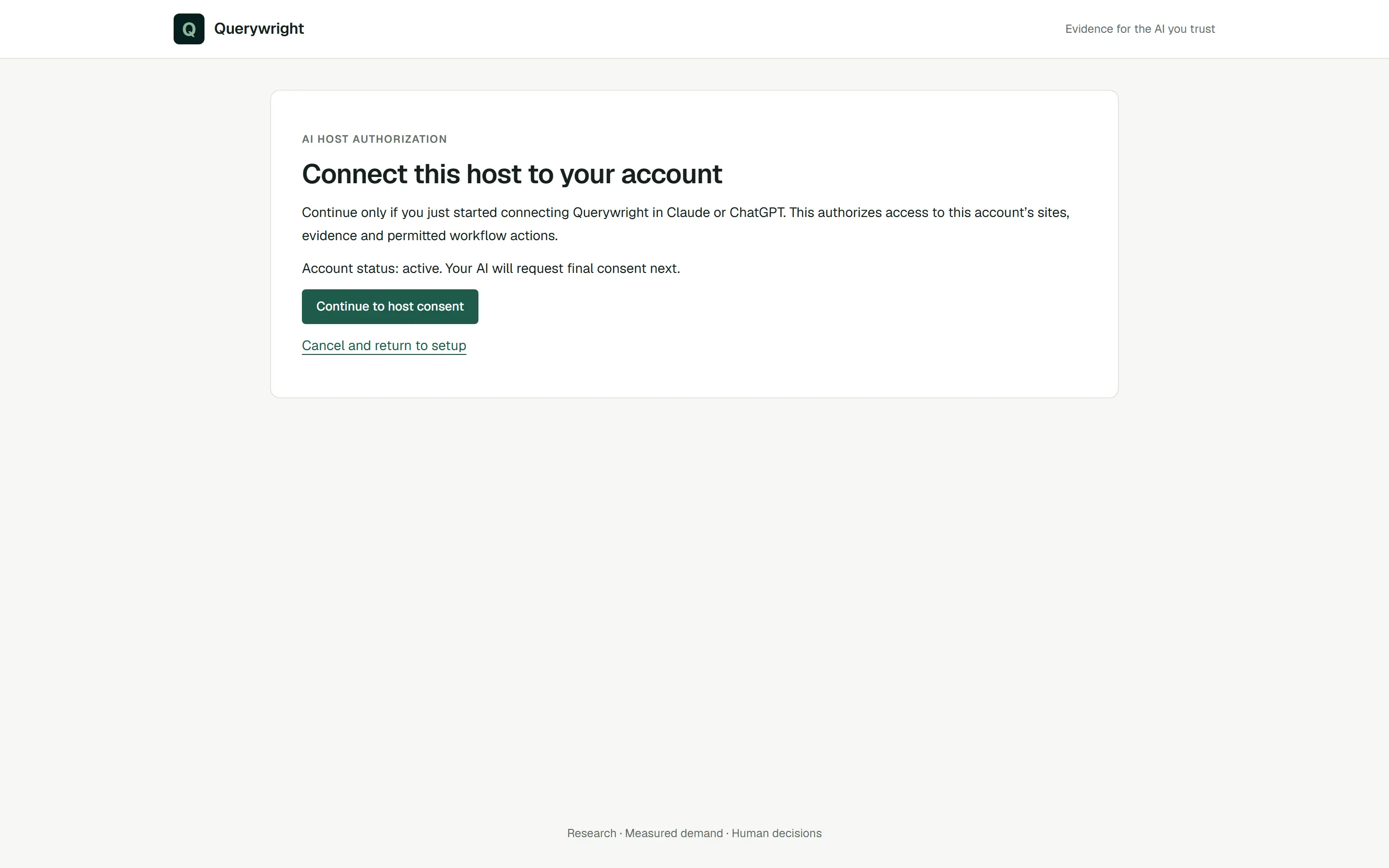
- Hand off to Claude’s consent. The App shows “Connect this host to your account”. Continue only if you started connecting in Claude a moment ago, then press Continue to host consent.
- Authorize. The “Authorize Querywright” page names Claude as the app requesting access. Press Authorize Querywright. Claude finishes the connection on its side.
- Confirm it in Querywright. Back in Settings → Connected AI (or the Connect AI step), press Refresh. A completed connection is listed as “Connection 1” with the date it was connected.
- Turn it on in a conversation. In a Claude conversation, switch the Querywright connector on from the connectors menu. Then paste the starter instruction from setup and send it.
Claude Code
The same address works in Claude Code. Add it as an HTTP server, then run the /mcp command and follow the browser steps to sign in and authorize it. The connection appears in Settings → Connected AI like any other.
claude mcp add --transport http querywright https://mcp.querywright.com/mcp
What you’ll see in the App
Settings → Connected AI lists each connection as “Connection 1”, “Connection 2” and so on, with the date it was connected and a Disconnect button. “Connected” means Claude completed the authorization; it is not a live signal that Claude is online or has used Querywright recently. Connecting Claude again replaces the earlier Claude authorization once the new one is used. More in AI connections.
If something goes wrong
- “This connection request is invalid or expired. Start again from your AI host.” The authorization link was reused or timed out. Go back to Claude and press Connect again; refreshing the Querywright page does not help.
- No connection is listed after Refresh. Claude did not complete the connection. Start again from Claude, not from the App.
- Claude lists the connector but shows no Querywright tools. Make sure the connector is switched on for that conversation, then start a new conversation.
- On a phone, Claude does not come back after you authorize. Connect from a desktop browser instead.
More cases are in connector problems. Using ChatGPT as well? See Connect ChatGPT.
Last updated