App guide
Overview
The first screen for a site. It shows what is waiting on you and where the site stands, and every panel opens one deeper screen. Nothing on it approves or decides anything.
Overview opens when you choose a site in the App, at /sites/example.com. It is the first item in the rail, and you can jump to it from anywhere in the site by pressing g then o. Each panel reads the same saved records your AI reads, so a count here matches what your AI tells you.
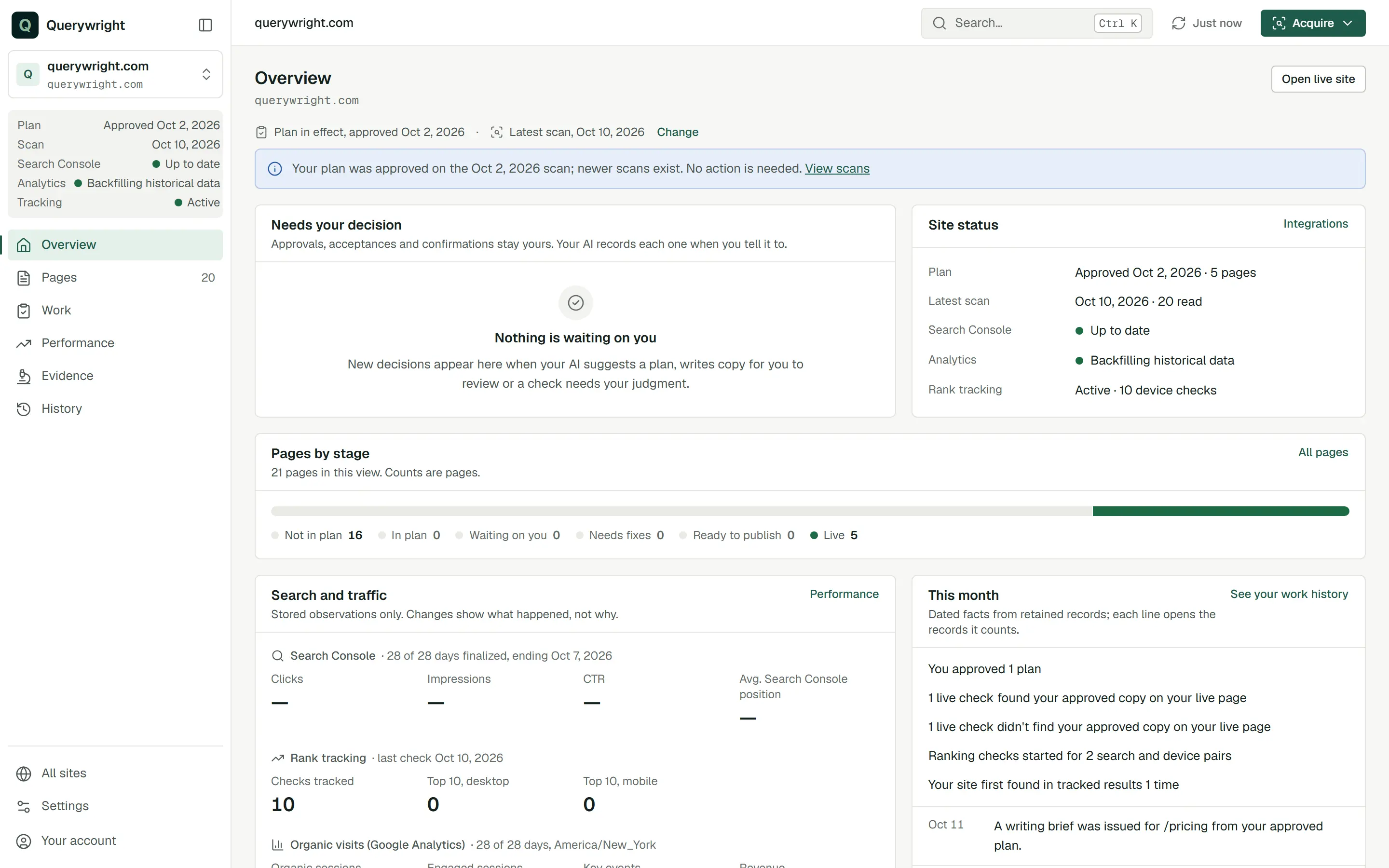
Header and context bar
The header shows the site’s address and an Open live site button, which opens your real site in a new tab.
Under it, the context bar says what the screen is showing:
- “Plan in effect, approved” and a date, or “No plan in effect”.
- “Latest scan” and a date, or “No scan yet”.
- Change, when the site has more than one scan or plan. Choosing a different scan or plan changes only what the view shows; it changes nothing you approved. Back to current returns to the plan in effect and the latest scan.
The same bar appears on Pages, on each page’s detail and on Work. When your plan was approved on an older scan, it adds a note that newer scans exist and that no action is needed.
Start your first scan
Until the site’s first scan finishes, a panel titled “Start your first scan” sits above everything else: “Pages, plans and checks all start from a scan of your site.” It holds the starter instruction and a Copy starter instruction button. Paste the instruction into Claude or ChatGPT and send it there. Your first site scan walks through what happens next.
Needs your decision
The panel’s description says it plainly: “Approvals, acceptances and confirmations stay yours. Your AI records each one when you tell it to.”
Each decision is listed once, with the page it concerns and one button:
- Review plan opens Work › Suggested plans.
- Open rankings opens Performance › Rankings, for a decision about starting rank tracking.
- Open page opens that page’s detail, where the decision is explained.
The badge on the title counts decisions. The panel shows up to six; below them, “N more waiting on you. Show all” and All in Work open the full list in Work. When nothing waits, the panel says “Nothing is waiting on you” and explains that new decisions appear when your AI suggests a plan, writes copy for you to review, or a check needs your judgment.
What’s waiting on me for example.com? For each decision, tell me what you’d recommend and why, and what evidence it rests on.Site status
A short list of where the site stands. Integrations opens Settings › Google Search Console.
| Row | What it shows |
|---|---|
| Plan | “Approved” with the date and the number of pages in the plan, or “None in effect”. |
| Latest scan | The scan date, how many pages were read and how many couldn’t be read, or “No scan yet”. A partial scan adds “Partial scan” or “Partial scan, stopped at N pages”. |
| Search Console | The import state of your Google Search Console connection (see the table below). |
| Analytics | The import state of your Google Analytics connection. |
| Rank tracking | “Active” with the number of device checks, “Not started” (a link to Performance › Rankings), or “Couldn’t be read right now”. |
The Search Console and Analytics rows use one of these labels. The rail’s status strip uses the same labels, under the rows Plan, Scan, Search Console, Analytics and Tracking.
| Label | Meaning |
|---|---|
| Not connected | No Google connection for this site yet. See Connect Google Search Console and Connect Google Analytics. |
| No property chosen | Google is connected but no property is chosen for this site. |
| Up to date | Imports are current. |
| Importing automatically | Imports are running on schedule. |
| Backfilling historical data | Recent days come first, then older history. This is progress, not stale data. |
| Waiting for Google to finalize date | Google has not finalized that day yet; Querywright checks again automatically. |
| Retry scheduled | A day will be retried automatically. No action is needed. |
| Import needs attention | Importing is paused, for example because Google access needs to be reconnected. Hover or read the line under it for the reason. |
| Import is delayed | No import progress has been recorded across several scheduled runs. |
Pages by stage
A bar that sorts every page in the view into one of six stages: “N pages in this view. Counts are pages.” Select a segment to open Pages filtered to that stage. All pages opens the full list.
| Stage | Which pages it counts |
|---|---|
| Not in plan | Pages no plan assigns and that have nothing waiting on you. That is normal for pages like About or Contact. |
| In plan | Pages in your plan with work in progress and nothing waiting on you, for example a writing brief ready for your AI. |
| Waiting on you | Pages with at least one decision waiting on you. |
| Needs fixes | Pages whose check found something to fix, including fixes only your AI can make. |
| Ready to publish | Pages whose latest check says “Ready to publish”. |
| Live | Pages where Querywright’s live comparison found your approved copy on the live page. |
Before the first scan the panel says “No pages yet” and offers a button that opens the whole-site scan.
Search and traffic
“Stored observations only. Changes show what happened, not why.” Three blocks, each from its own source:
- Search Console: Clicks, Impressions, CTR and Avg. Search Console position for the latest period, with how many of its days Google has finalized. The figure for the period before appears only when both periods are complete. See Search Console.
- Rank tracking: Checks tracked, Top 10, desktop and Top 10, mobile, with the date of the last check, or “No ranking checks for your current plan yet.” See Rankings.
- Organic visits (Google Analytics): Organic sessions, Engaged sessions, Key events and, when the property reports it, Revenue, with how many days are complete in the property’s time zone. Until the first days import it says “Waiting for mature data.” See Google Analytics.
A block that is not connected says “Not connected” with a link to connect it. Performance opens the full Performance section.
This month
“Dated facts from retained records; each line opens the records it counts.” Summary lines at the top open History focused on exactly the records each one counts. Below them are the five newest dated events. A “derived” tag marks a line Querywright worked out from several saved records rather than read from one. See your work history opens History. An empty month says “Nothing recorded yet this month”.
Searches to look into
“Candidates from your retained evidence. Your AI weighs them and you decide.” Chips count the candidates in each lane, and the first five are listed with their market and their search demand mark. All candidates opens Evidence › Searches to look into, described in Evidence and the Acquire menu. When nothing qualifies it says “Nothing in your current evidence stands out” and reminds you that incomplete coverage can leave searches unseen.
Links and link sources
The dates of your newest link snapshots, then two counts: “Link sources you pursue” and “Domains linking to competitors, not decided on”. Links opens Evidence › Links. Without snapshots it says “No link snapshots retained yet for this site.” See Links.
Not pursuing
This panel appears only after you have told your AI not to pursue something. “Directions you told your AI you are not pursuing.” It lists up to five, each with the date you said so, and reminds you: “Your AI recorded these when you said so. Tell your AI if you want to reopen one.” All opens Work › Not pursuing.
Labels on this screen
| Label | Meaning | What to do |
|---|---|---|
| Nothing is waiting on you | No decision is open for this site. | Nothing. New decisions appear here. |
| Review plan | Your AI suggested a plan that needs your approval. | Read it in Work › Suggested plans, then tell your AI whether you approve it. |
| Open rankings | Starting weekly rank tracking needs your decision. | Read Rankings and decide on Performance › Rankings. |
| Open page | A decision on one page waits on you. | Open the page and read its “Waiting on your decision” panel. |
| None in effect | No plan has been approved for this site. | Ask your AI to suggest one from the latest scan. |
| Not started | Rank tracking is not enrolled for this site. | Decide whether to start it once pages are published. |
| derived | Querywright worked the line out from saved records. | Open the line to see the records behind it. |
Last updated