App guide
Pages and page detail
Every page Querywright knows about for a site, where its work stands and what happens next. Open a page to see its journey, its evidence, how it performs and its saved records.
Pages is the second section in the rail, at /sites/example.com/pages; press g then p to jump to it. The number beside it in the rail counts the pages found in the scan in view.
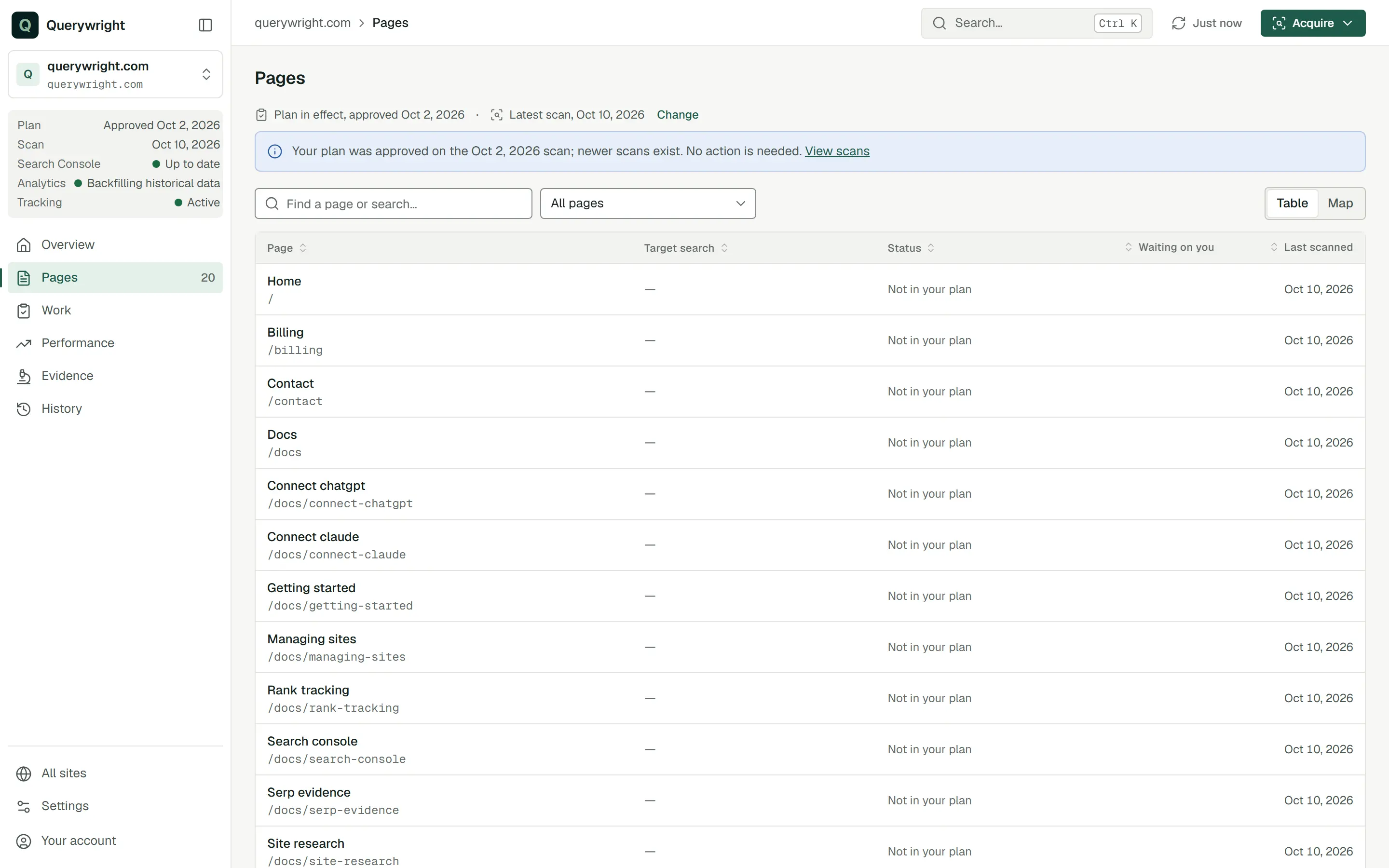
The Pages table
Above the table:
- Find a page or search… matches a page’s title, path or target search.
- A filter menu (see below).
- Stage: and a stage name, when you arrived from a segment of Overview’s Pages by stage bar. Select it to remove the stage.
- Clear removes the search, filter and stage at once.
- Table and Map, on wide screens, switch between the table and a map of the site’s pages.
| Column | What it shows |
|---|---|
| Page | The page title and its path. Select a row to open the page. |
| Target search | The search your approved plan assigns to the page, or a dash. |
| Status | The page’s work state (see Work states). Pages outside your plan read “Not in your plan”. |
| Waiting on you | How many decisions on this page wait on you. |
| Last scanned | The date of the scan that read the page, or “Not found in scan” for a page a plan adds that the scan did not find. |
The footer counts the pages shown and reminds you that pages not in your plan are normal for About or Contact.
Filters
| Filter | Shows |
|---|---|
| All pages | Every page in the view. |
| Waiting on you | Pages with a decision waiting on you. |
| Found in scan | Pages the scan in view read. |
| New pages, not found in scan | Pages a plan adds that the scan did not find, such as a new page to create. |
| In your plan | Pages your plan assigns. |
| Not in your plan | Pages no plan assigns. |
| A work state | One entry for each of the common work states, such as “Writing brief ready” or “Needs fixes”. |
Map
The map shows the same pages as the table, following the same search, filter and stage, drawn as a map of the site. Select a page to open it. On narrower screens the table shows instead.
Work states
Each page has one work state. It appears in the Status column, on Work › Plan in effect and as the first chip on the page’s detail. The button at the top right of a page’s detail names the next step; its labels are in the third column.
| Status | Meaning | Next-step button | What to do |
|---|---|---|---|
| Not in your plan | No plan assigns this page. That is normal for About or Contact. | A button that opens the whole-site scan | Nothing, unless the page matters. Ask your AI to research it if it does. |
| Waiting on you | Your AI suggested a plan that includes this page and it needs your approval. | Review suggested plan | Read it in Work › Suggested plans and tell your AI whether you approve it. See Suggested plans and approval. |
| Choose a plan | Saved plans exist for individual pages, and the view needs you to choose which one to show. | Choose a plan | Pick one under Change in the context bar, or open Work › All plans. |
| In your plan | Your approved plan assigns this page a target search. No writing brief or copy yet. | Write copy in your AI | Ask your AI to write the copy from its writing brief. |
| Writing brief ready | Querywright has issued the writing brief your AI writes from. | Open writing brief | Ask your AI to write from it and show you the full page before anything is saved. |
| Ready to check | You accepted copy for this page and it has not been checked yet. | Check this copy in your AI | Ask your AI to check it. |
| Ready to publish | The check found nothing to fix and nothing waiting on you. It may add “· N statements confirmed by you”. | Recheck against latest scan | Publish the copy yourself. Then ask your AI to scan the page and compare it with your approved copy. |
| Nothing failed; some checks need a fuller scan | No check failed, but some could not be completed from the scan available. | See what to confirm | Read the check result. Ask your AI whether a fuller scan would settle the open items. |
| Ready once you decide N things | The check needs that many decisions from you before the copy is ready. | See what to confirm | Read each item under “Waiting on your decision” and tell your AI what you decide. |
| Needs fixes | The check found something in the copy that has to change. | See what to fix | Read the items under “Needs a fix”, ask your AI to revise the copy, accept the revision and check again. |
| Needs a fix from your AI | Something has to change and only your AI can make the fix. Nothing waits on you. | See what to fix | Ask your AI to make the fix. |
| Choose which version to keep | More than one version of the copy has the same latest date. | Choose which version to keep | Tell your AI which exact version you accept. |
| Copy history needs recovery | The page’s accepted-copy history could not be read completely, so whether accepted copy exists is not stated. | Continue in your AI | Ask your AI to recover the exact copy history. |
| Checked under earlier rules; compare again | A live comparison made under earlier rules reads the same saved scan differently today. It is not stated as a defect. | Compare again in your AI | Ask your AI to compare the same saved scan again before anything is changed. |
| Approved copy is live | Querywright’s live comparison found your approved copy on the live page. It says nothing about Google’s index. | Recheck against latest scan | Nothing is required. Decide whether to start rank tracking, and recheck after you change the page. |
| Approved copy is live; some checks need a fuller scan | Your approved copy was found on the live page; some checks could not be completed from that scan. | See what to confirm | Read the open items and decide with your AI whether a fuller scan is worth it. |
Two more next-step labels can replace the one in the table:
- Review and accept this copy again, when a check raised a decision that has to be part of your acceptance. Read the decision, then tell your AI that the exact copy, with that decision, is the one you accept. See Approved copy.
- Continue in your AI, whenever the next step has no button of its own.
Page detail
Select a page to open its detail, at /sites/example.com/pages/ followed by the page’s path.
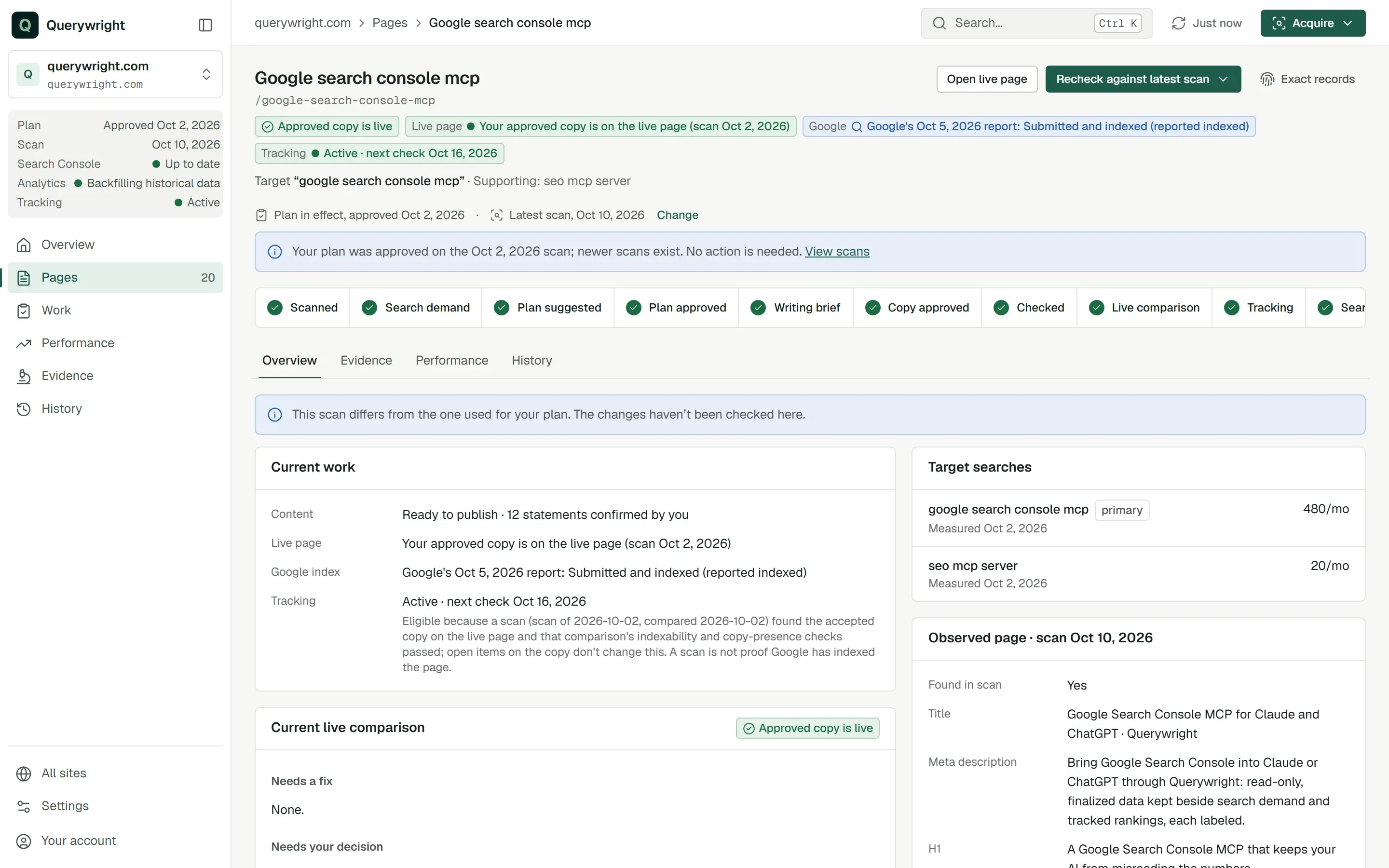
Header
- The page title and its path.
- Open live page, for a page the scan found.
- The next-step button, which opens a menu titled “Next for this page”: the step’s own link where it has one (for example Open writing brief), Continue in your AI… and Copy handoff.
- Exact records, which opens “Exact records for this page”: the identity of the plan, the scan approved with the plan, the approved copy, the check, the live comparison and the rank tracking targets the page’s current work comes from, with a request you can copy to your AI to open those exact records.
- Status chips, each kept separate: the work state; “Live page” with what Querywright’s comparison found; “Google” with Google’s dated index report; and “Tracking” with the state of weekly rank checks. The meanings are in Labels you’ll see in the App.
- “Target” and the page’s target search, its market and any supporting searches.
Continue in your AI… opens a dialog of instructions to copy into Claude or ChatGPT. They name the exact saved versions your AI needs.
Journey strip
A row of steps from scan to search results. A filled check marks a finished step; a ring marks the current one. Hover a step to read its detail, and select a finished step with a saved record to open that record. The strip appears for pages in your plan or in a suggested plan; the last two steps appear once a plan assigns the page.
| Step | When finished it says | Until then it says |
|---|---|---|
| Scanned | Scan used by this plan | Not in a scan yet |
| Search demand | Checked for “target search” | Not checked yet |
| Plan suggested | Your AI suggested a target search | No suggestion yet |
| Plan approved | You approved it date | Not approved yet |
| Writing brief | Ready for your AI | No brief yet |
| Copy approved | You approved it date | No approved copy yet |
| Checked | See check result | Not checked yet |
| Live comparison | What the comparison found, or “Earlier result in history” | No live comparison yet |
| Tracking | The tracking line, such as “Active · next check” and a date | Not tracked yet |
| Search results | “First found in tracked results” or “First Search Console impressions”, with the date | “Observation underway since the live page was confirmed” or “No outcome evidence yet” |
Search demand counts as finished when the target search has a measurement, including a measured zero. See Measured zero vs no data.
When the copy and check came from an earlier plan that assigned the page in exactly the same way, a line under the strip says so: “Copy and check carried from the plan approved” with that date.
Overview tab
- Waiting on your decision: each decision on this page, quoting the statement it concerns where there is one. “Decide with your AI; it records your decision exactly as you state it.” How to decide in your AI opens the instructions to copy.
- Current work: Content, Live page, Google index and Tracking, each on its own line and never merged.
- Pre-publish check result, or Current live comparison after a live comparison: the items grouped under “Needs a fix”, “Needs your decision” and “Notes”.
- Next steps: “Valid steps in workflow order, with who takes each. Not a recommendation.” Each step carries an actor tag: You, Your AI or Querywright.
- Target searches: each search with its demand and the date it was measured, or “Not measured”.
- Observed page: what the scan recorded, including Title, Meta description, H1, Loads, Search engines allowed, Sits under and Links from your other pages, with a page excerpt of up to 1,600 characters. Claims found on your site are not independently verified.
Evidence tab
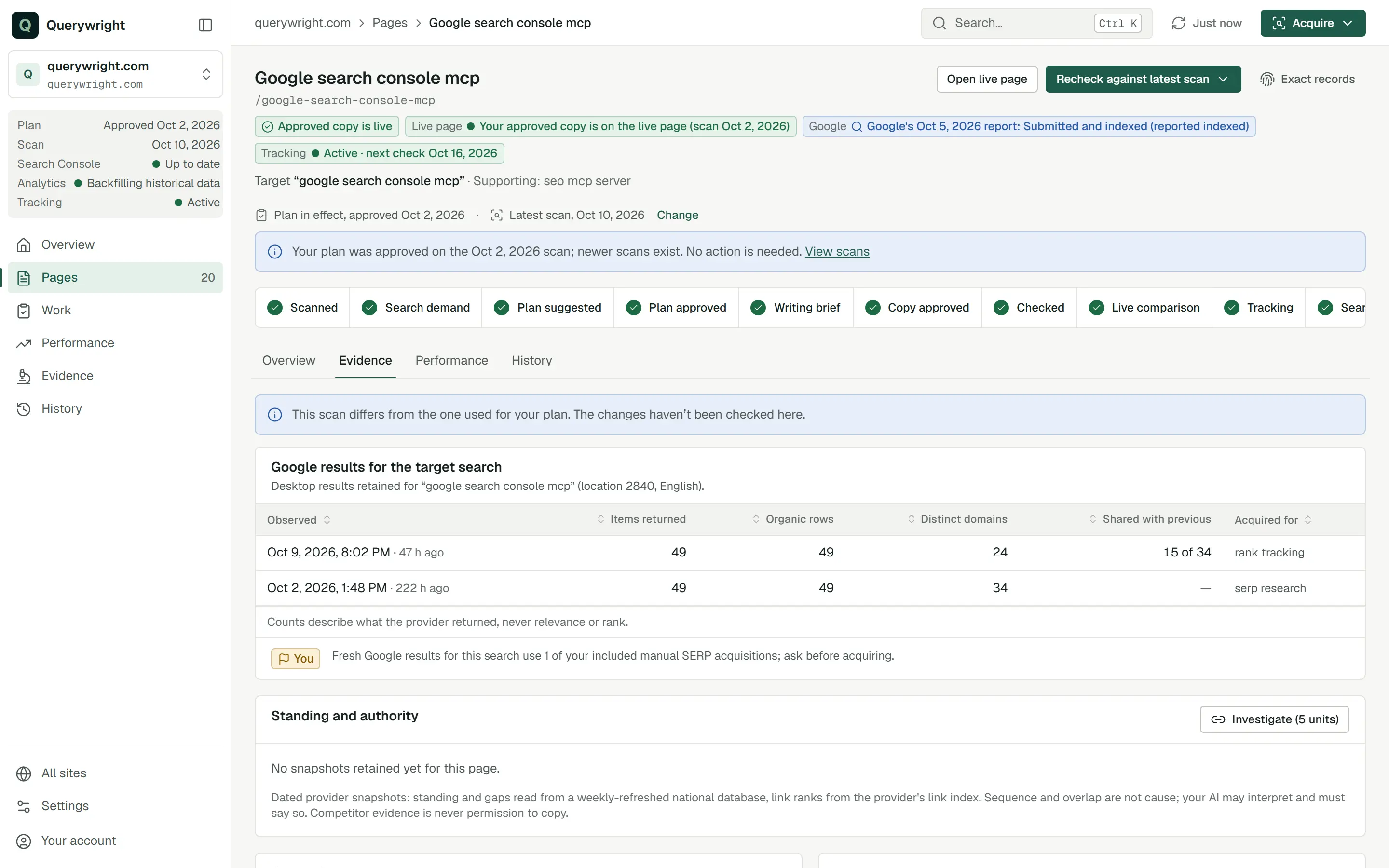
- Google results for the target search: the retained desktop results for the page’s target search, with when each was observed. The counts describe what was returned, never relevance or rank. See Google results.
- Standing and authority: dated provider snapshots such as “Pages above yours” and “Link authority”. Investigate acquires new snapshots after a confirm step that states the Site Intelligence units it uses. See Links.
- Google index: Google’s newest dated report for the page. “Google’s dated report, not a live test.”
- Rendered page: how the page reads after a browser runs its scripts, compared with the plain fetch.
- Page experience: Google field data and lab runs for the page. See Page experience.
Pages outside your plan or a suggested plan show “No evidence is gathered for pages outside your plan” instead.
Performance tab
- Rankings: the page’s desktop and mobile checks, with Position, Last checked, Next and a History button for each device.
- Search Console for this page: a finalized 28-day window. “Impressions are exposure, not search demand; average position is not a rank check; missing rows are not zero.”
- Google Analytics landing behaviour: organic sessions that began on this page.
- Since your copy went live: what was observed after the copy was first seen live.
History tab
“Saved records for this page”, newest first. Earlier versions stay available and are marked, never removed. Select a record to open it.
Labels on these screens
| Label | Meaning | What to do |
|---|---|---|
| Not found in scan | A plan names the page but the scan did not find it. | Expected for a new page you have not published. Otherwise check the address. |
| Exact records | The identities of the saved records behind the page’s current work. | Copy the request to your AI when you need those exact records. |
| Continue in your AI | The next step happens with your AI. | Copy the handoff into Claude or ChatGPT. |
| Copy handoff | Copies the page’s instructions for your AI. | Paste them into your AI conversation. |
| No evidence is gathered for pages outside your plan | Querywright keeps only scan facts for pages outside a plan. | Ask your AI to research the page if it matters. |
Last updated