Integrations
Connect Google Analytics
Querywright reads aggregate GA4 reports for what organic visitors did after the click. It is a separate Google consent from Search Console.
What this connection reads
The connection is read-only. Querywright asks Google for read-only Google Analytics 4 access to aggregate reports, and no person-level data is retained. It never changes the property, its events or its settings.
With a property chosen for a site, Querywright imports daily organic search behaviour as GA4 reports it: sessions, new users, engaged sessions, engagement rate, key events and revenue, with landing pages. You read them in Google Analytics under Performance, and your AI reads the same stored days.
None of this uses your allowances.
Before you start
- An active subscription. Choosing a property and resuming an import need one. See Your subscription.
- The site in Querywright. Add it in Settings → Sites first. See Sites.
- A GA4 property your Google account can read. It can be a different Google account from the one you use for Search Console.
Connect
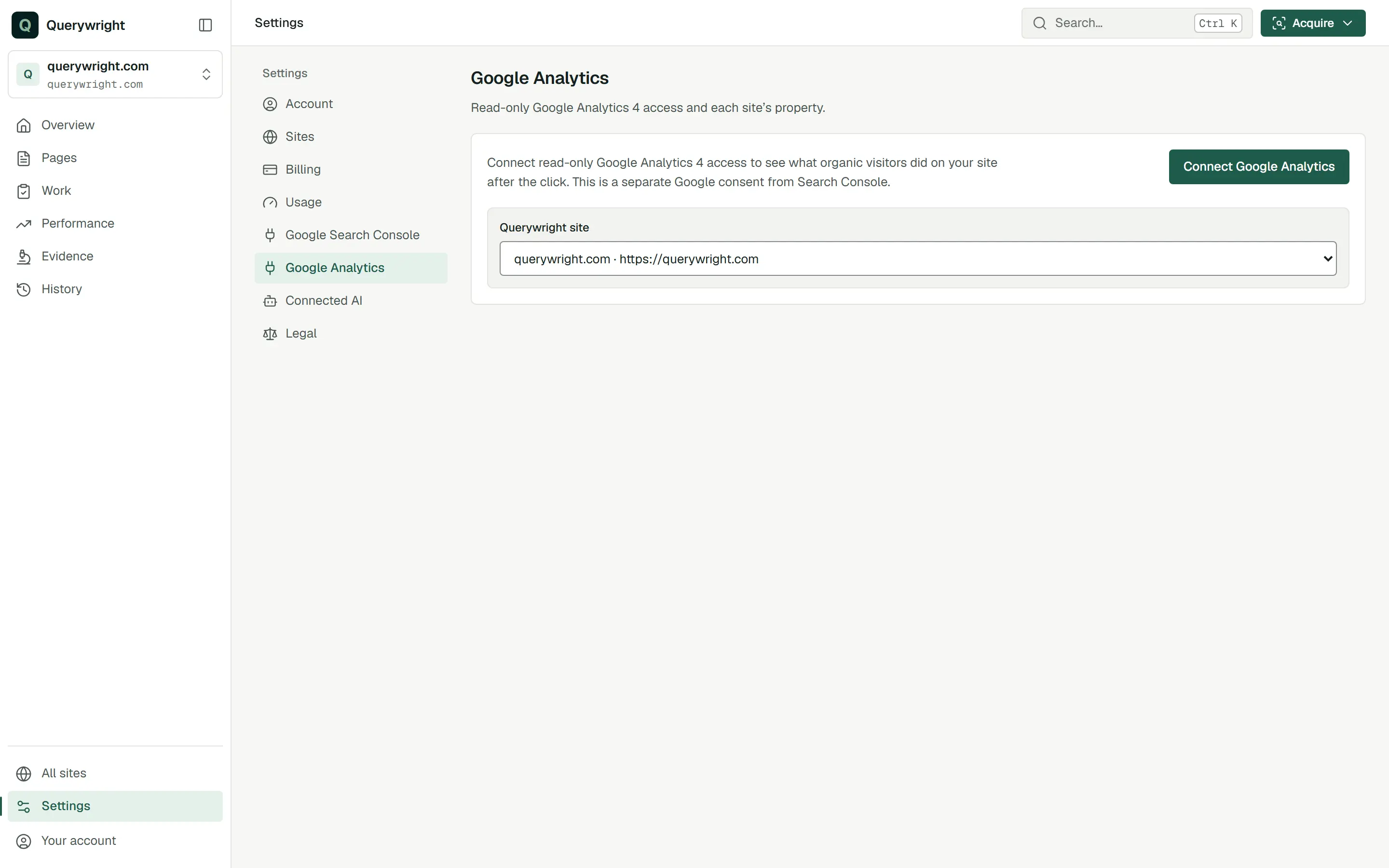
- Open Settings → Google Analytics and choose the site from Querywright site.
- Press Connect Google Analytics. Pick your Google account on Google’s screen and approve read-only access. You come back to Settings with “Google Analytics connected. Choose the GA4 property that measures each site.”
- Check Google Analytics connection. Each connection shows “Connected” with the date and how many sites use it. If you connected more than one Google account, choose the one that can read the property.
- Open GA4 property. Every property this Google account can read is listed by name and ID. Some carry a hint, “matches this site’s host” or “other host”.
- Choose the property that measures this site and press Use selected property. The App confirms “Property connected. Each day is imported once it is 72 hours old; the last 90 days import automatically.”
- To connect another site, choose it from Querywright site and repeat steps 3 to 5.
The first import
Querywright imports each day once it is 72 hours old in the property’s own time zone, after Google’s processing window. Each day is observed once and kept as GA4 reported it then. GA4 may revise processed data later; Querywright does not read the day again.
The first import brings in the last 90 days: the most recent 28 days first, then older history back to the start of the 90 days. After that, each day is added once it turns 72 hours old. The import runs in the background; you don’t need to keep the App open.
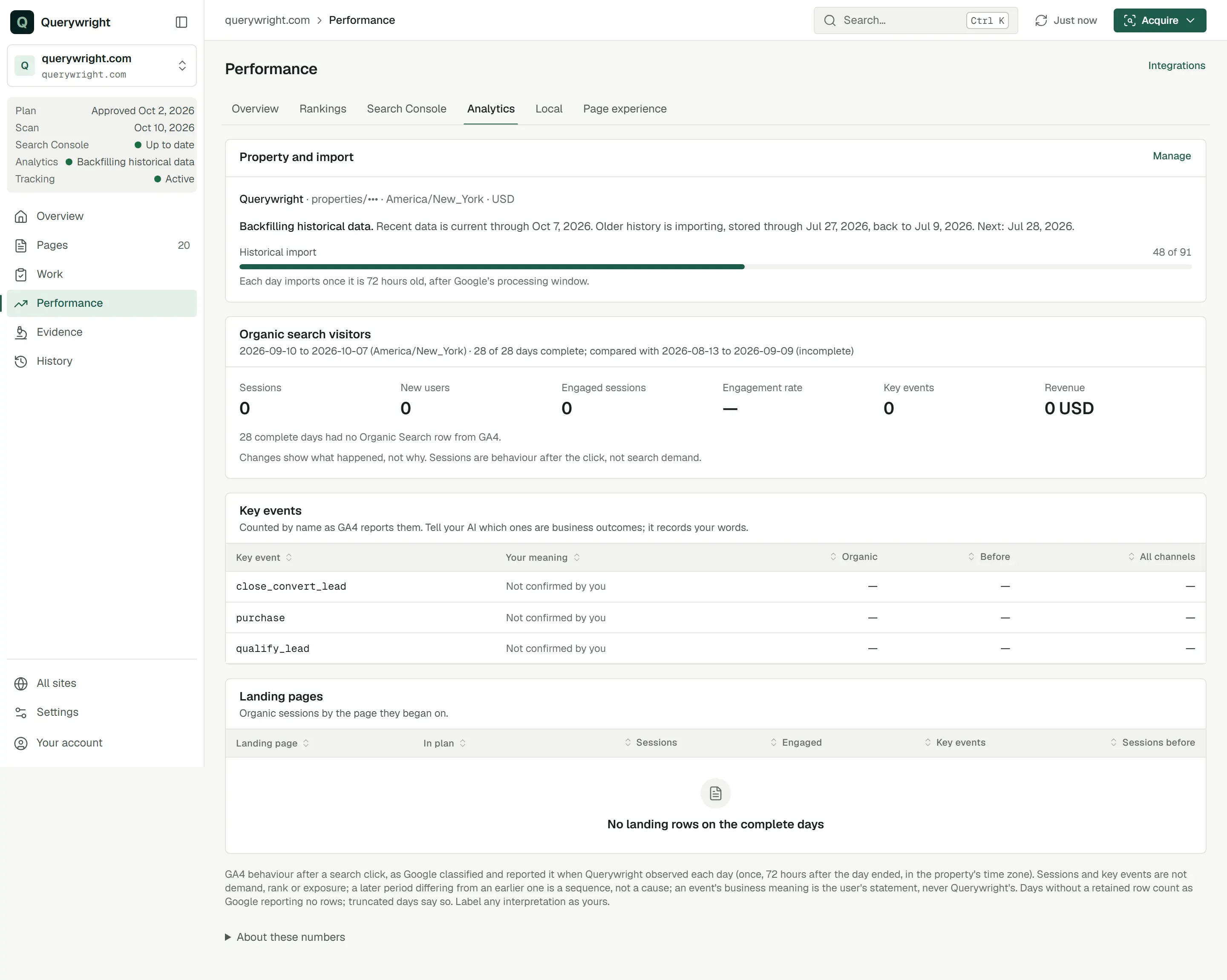
The Bound property box shows the property’s name, ID and time zone with the import state, then a line such as “Imported through Oct 7, 2026.” While history is loading it adds a progress bar, “N of M days imported”.
| State | What it means | What to do |
|---|---|---|
| “Backfilling historical data” | History is loading: recent days first, then older days back to the 90-day start. | Nothing. |
| “Up to date” | Every day that is 72 hours old is imported. | Nothing. |
| “Importing automatically” | The import is running between the named states. | Nothing. |
| “Retry scheduled” | A day will be retried automatically. | Nothing. “No action is needed.” |
| “Import is delayed” | A day started importing and did not finish, or no progress was recorded across several scheduled runs. | Wait for the next scheduled run. See Imports, backfills and incomplete periods. |
| “Import needs attention” | The import is paused until you act. | Follow the line under it. See Imports, backfills and incomplete periods. |
What you’ll see in the App
- Performance › Analytics opens with a Property and import panel and a Manage link back to Settings. Until the first days are in, it shows “Waiting for mature data”, which means the days aren’t imported yet, not that the site did badly. Then it shows organic search visitors for the latest period, with how many of its days are complete.
- Performance › Overview has an Analytics card.
- The site status panel under the site switcher has an Analytics row, and All sites has an Analytics column. Both show the import state, “No property chosen” or “Not connected”.
Remove the connection
- In Settings → Google Analytics, choose the connection in Google Analytics connection.
- Press Remove connection, or Remove unused connection if no site uses it.
Querywright deletes the credential it stored for that connection. Sites that used it stop importing. Saved Analytics history stays available in the App and to your AI.
Removing the connection in Querywright does not revoke Querywright’s authorization at Google. To revoke it, use your Google Account security settings.
If something goes wrong
- Google’s screen did not finish, a property is missing from the list, or the App asks you to reconnect: Google sign-in and property connections.
- An import is delayed or paused: Imports, backfills and incomplete periods.
Last updated